How to Setup Electronic Shelf Labels?
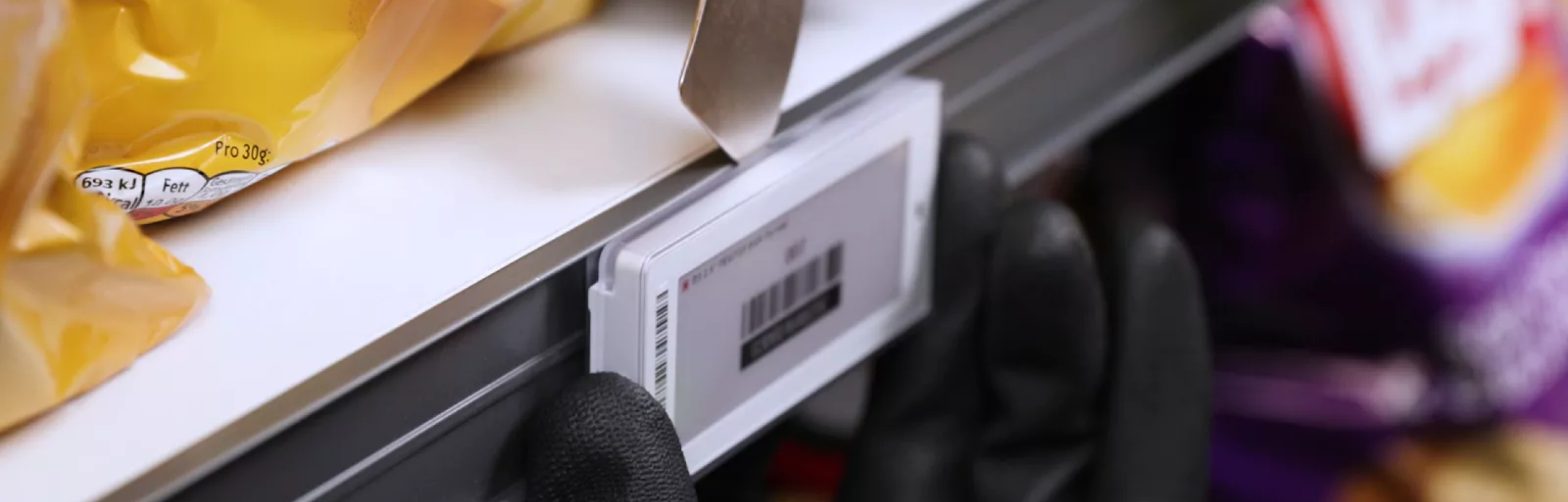
Before leveraging Newton’s features, you must learn how to set it up. Here is an infographic to learn how to install the most advanced breed of ESL to date.
- Industry
- Retail
- Product
- ESL & IoT
 Unboxing and Newton Label Preparation
 Unboxing and Newton Label Preparation
Have you switched to SOLUM Electronic Shelf Labels? If yes, congratulations! Your business has finally embarked on its digital journey. But it’s only the first step in elevating your business operations.
Before leveraging Newton’s features, you must learn how to set it up. Here is an infographic to learn how to install the most advanced breed of ESL to date.
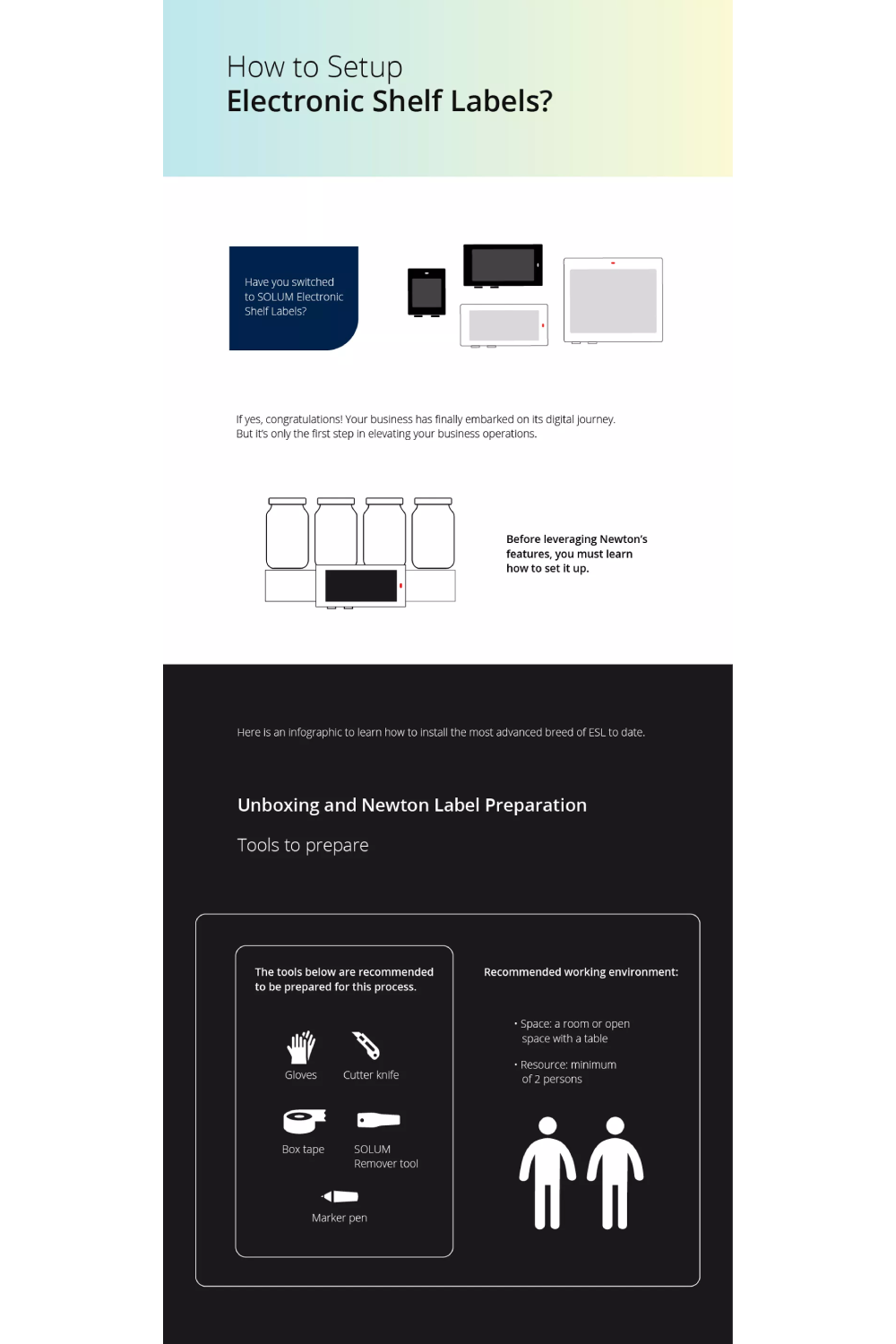
Unboxing and Newton Label Preparation
Tools to prepare
The tools below are recommended to be prepared for this process.
- Gloves
- Cutter knife
- Box tape
- SOLUM remover tool
- Marker pen
Recommended working environment:
- Space: a room or open space with a table
- Resource: minimum of 2 persons
Procedure
1. Find the correct outer box for the suitable label model by checking the PART Number.
2. Check the condition of the box for any damage or contamination.
If the outer box is damaged, contaminated or wet,
- Take a picture of the outer box, inner boxes, and the condition of labels for evidence.
- Check the condition of the inner boxes and check the total quantity of any lost label.
If there is any lost, damaged or contaminated label, please follow the Dead on Arrival (DOA) process below:
- Please take a picture of the label as evidence.
- Tape these labels with some buffer put them in an inner box, and write the problem ex.: damaged, contaminated or DOA and quantity on the box.
- Tape the inner box and send them to your support team with a report mail.
3. Open up the box with a knife and check the total number of inner boxes and also the total number of labels in each inner box.
In case of an inner box in partial quantity (Partial Carton), there is a Partial Carton sticker on the outer box, and the partial quantity is written on the inner box.
4. Check the condition of a label. Verify that it’s clean, not scratched, and not damaged.
Label Initialization
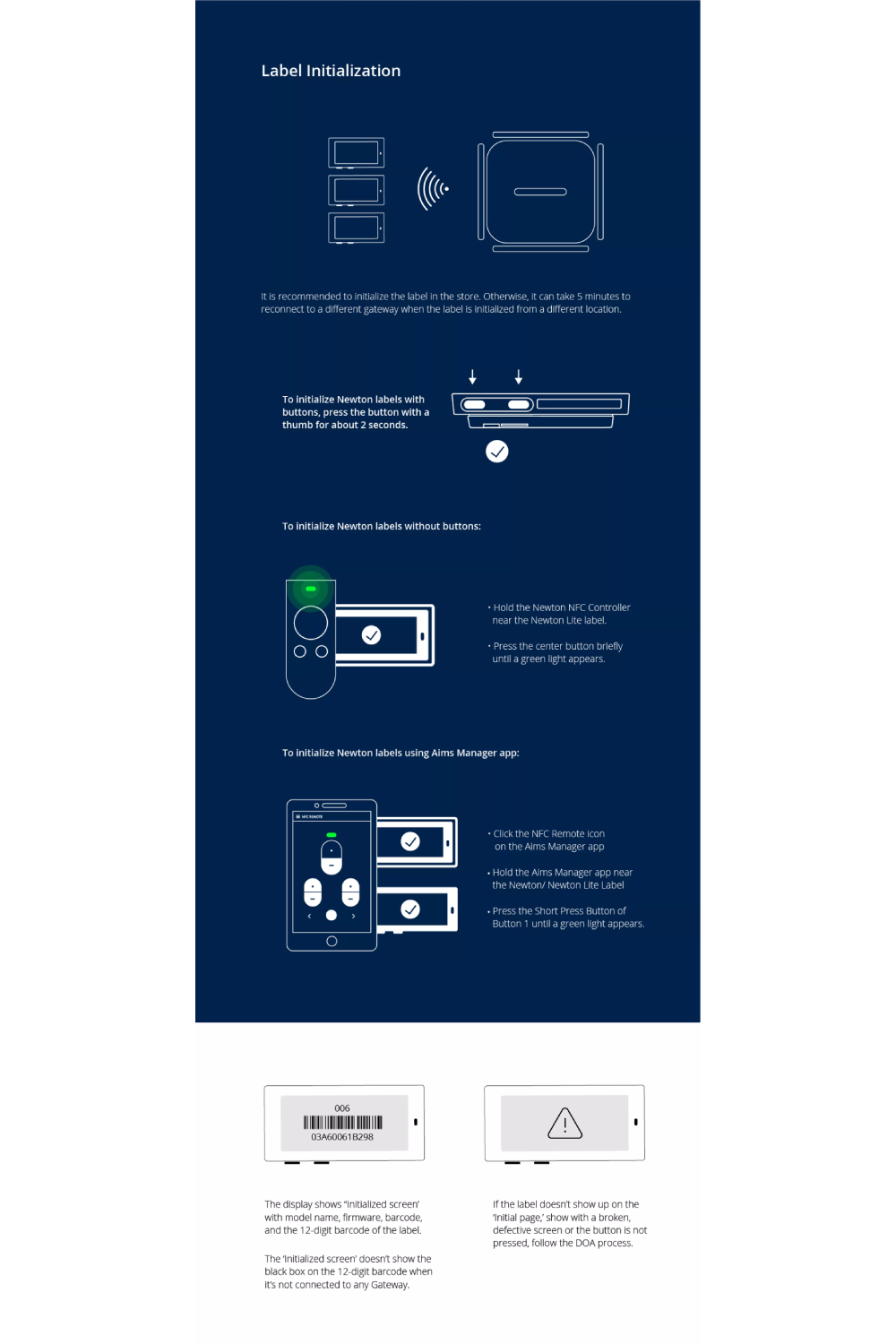
It is recommended to initialize the label in the store. Otherwise, it can take 5 minutes to reconnect to a different gateway when the label is initialized from a different location.
To initialize Newton labels with buttons, press the button with a thumb for about 2 seconds.
To initialize Newton labels without buttons:
- Hold the Newton NFC Controller near the Newton Lite label.
- Press the center button briefly until a green light appears.
To initialize Newton labels using MDE device:
- Click the NFC Remote icon on the ESL Manager app
- Hold the MDE Device near the Newton/ Newton Lite Label
- Press the Short Press Button of Button 1 until a green light appears.
The display shows “Initialized screen’ with model name, firmware, barcode, and the 12-digit barcode of the label.
The ‘Initialized screen’ doesn’t show the black box on the 12-digit barcode when it’s not connected to any Gateway like the below image.
If the label doesn’t show up on the ‘Initial page,’ show with a broken, defective screen or the button is not pressed, follow the DOA process.
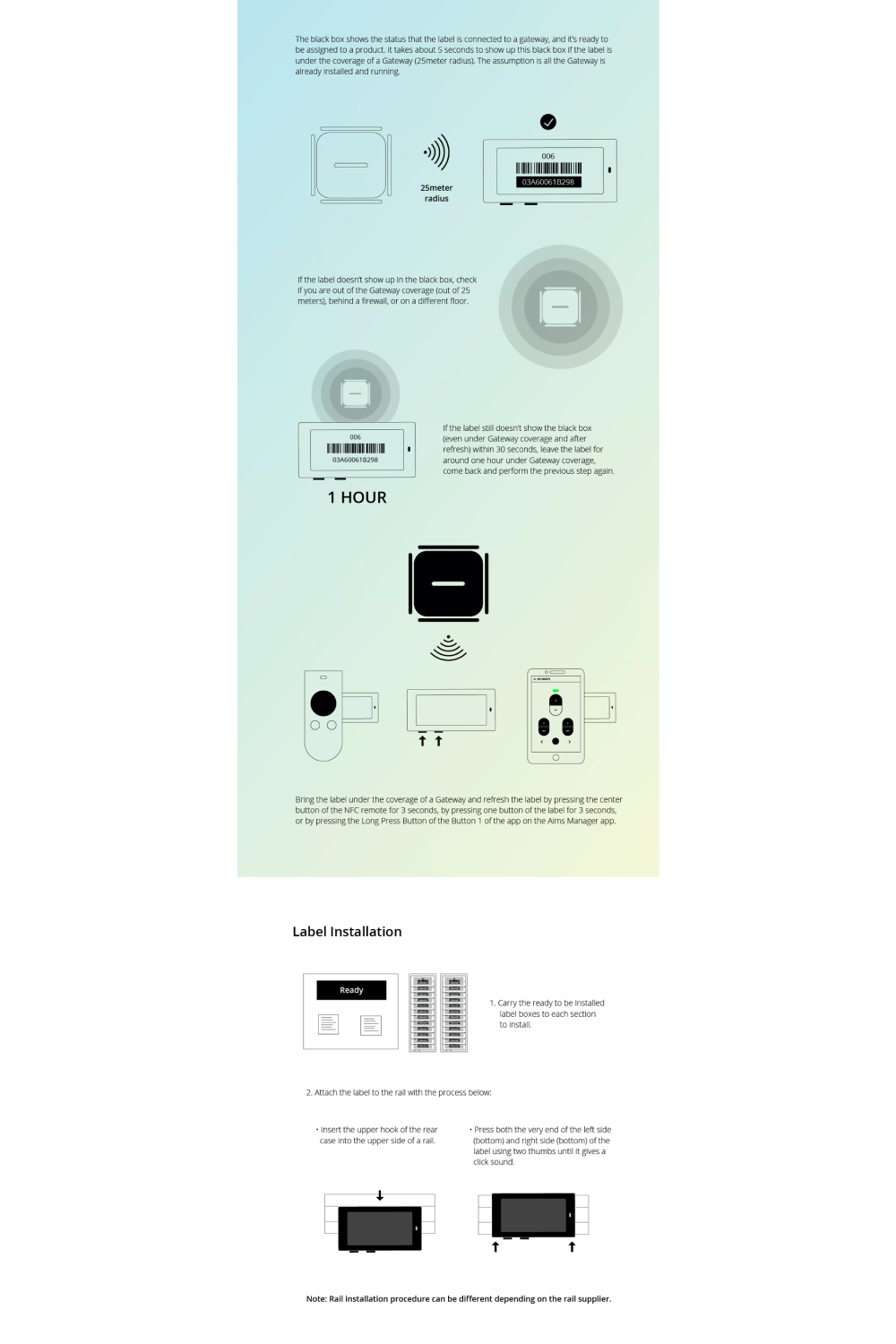
The black box shows the status that the label is connected to a gateway, and it’s ready to be assigned to a product. It takes about 5 seconds to show up this black box if the label is under the coverage of a Gateway (25meter radius). The assumption is all the Gateway is already installed and running.
If the label doesn’t show up in the black box, check if you are out of the Gateway coverage (out of 25 meters), behind a firewall, or on a different floor.
If the label still doesn’t show the black box (even under Gateway coverage and after refresh) within 30 seconds, leave the label for around one hour under Gateway coverage, come back and perform the previous step again.
Bring the label under the coverage of a Gateway and refresh the label by pressing the center button of the NFC remote for 3 seconds, by pressing one button of the label for 3 seconds, or by pressing the Long Press Button of the Button 1 of the app on the MDE device.
Label Installation
1. Carry the ready to be installed label boxes to each section to install.
2. Attach the label to the rail with the process below:
- Insert the upper hook of the rear case into the upper side of a rail.
- Press both the very end of the left side (bottom) and right side (bottom) of the label using two thumbs until it gives a click sound.
Note: Rail installation procedures can be different depending on the rail supplier.
For more information on Newton, contact us today or visit our website at www.solum-group.com